
Add as a preferred source on Google
Apple Maps Vs. Google Maps for Local SEO
Apple Maps and Google Maps both drive local SEO: Google Maps leads on search reach, and Apple Maps is the default map on every iPhone. When it comes to local SEO, everything seems to be based on Google Maps search results. And there’s a good reason for this: in an April 2018 survey reported by Statista, 72 percent of US mapping app users accessed Google Maps, far more than any other app. But does this mean that Google Maps are better than Apple Maps? This is what we shall look at in this post.
Android phones come with Google Maps, and Android users can only reach Apple Maps through a web browser at maps.apple.com. However, if you have an iPhone, you can use Apple Maps and Google Maps. Choosing between Google Maps and Apple Maps can be challenging as both serve a similar purpose, although there are some differences in their navigation tools and interfaces. This post looks at everything you need to know between Google Maps and Apple Maps and what each means for local SEO.
Short answer Apple Maps and Google Maps are separate services with separate business listings. Google listings are managed in Google Business Profile. Apple Maps listings, called place cards, are managed in Apple Business, which replaced Apple Business Connect in April 2026. Both are free to claim. For local SEO, claim and verify both, keep your name, address, phone, hours and categories identical, and add photos. Your Apple place card also feeds Siri, Spotlight and other Apple apps on every iPhone.
Apple Business vs Google Business Profile: Side-by-Side Comparison
Apple Business controls how you appear on Apple Maps, and Google Business Profile controls Google Maps and Search. Both are free and need verification. They share no data, so updating one does nothing to the other.
| Feature | Apple Business (Apple Maps) | Google Business Profile (Google Maps) |
|---|---|---|
| Where you manage it | business.apple.com (Apple Business replaced Apple Business Connect on April 14, 2026) | Google Business Profile, from Google Search or Maps |
| Cost | Free | Free |
| Claiming and verification | Verify your organization first (Apple reviews it), then verify each location, for example by phone call with a four-digit code | Google chooses the method for each business: phone, text, email, live video call, video recording or postcard |
| Listing name | Place card | Business Profile |
| Categories | One primary category plus up to 19 more | One primary category plus additional categories |
| Photos | Logo, cover photo and gallery photos, each reviewed by Apple before they appear; Apple Account users can also add photos | Owner photos and customer photos |
| Reviews and ratings | Apple’s own ratings (users give a thumbs up or down by category) plus content from partners such as Yelp and Tripadvisor | Google reviews with star ratings; verified owners can reply |
| Promotions | Showcases: a module on the place card for deals, new products or seasonal items | Posts: updates, offers and events |
| Action buttons | Custom actions such as order, reserve or book that open your website or app | Call, website and directions buttons |
| Insights | Search taps, place card views, taps on directions, website, call and showcase, where direction requests came from, and comparisons with your similar locations | Searches and the search terms people used, views, calls, direction requests and website clicks |
| Where the listing shows up | Apple Maps, Siri, Spotlight, Safari, Calendar, Messages and Apple Wallet | Google Maps and Google Search |
| Ads | Ads in Apple Maps, US and Canada only, for businesses with claimed locations | Through Google Ads |
The biggest practical difference is reach. Google’s listing reaches Android users, desktop searchers and anyone using Google Search. Apple’s place card is the default on iPhone, iPad and Mac, and it surfaces in system features like Siri and Spotlight that never open a browser. A business that only manages its Google profile leaves its Apple listing to whatever data Apple collects from other sources.
Apple Maps Vs. Google Maps – History
Google Maps were launched in 2005. Being the first service of its kind, they have made a name as the go-to mobile mapping service. On the other hand, Apple Maps were launched in 2012, although the service struggled with technical issues that made it almost unreliable. Some problematic issues experienced at the beginning included wrong directions and bugs that brought about usability issues. This was to Google Maps’ advantage; that continued to improve and excel.
However, as a tech giant, Apple later improved its service, especially with the release of iOS 13 and iPadOS 13. Apple Maps became even better when Apple started using its own data to provide navigation to its users, which resulted in more detailed and accurate maps. Both Google Maps and Apple Maps provide vital mapping services like driving directions, locating places, and walking directions. That said, here are the differences between the two.
Availability/Platform
Google Maps work on a cross-section of devices, including Android, iOS, iPadOS, and web browsers. No matter your device, you can still benefit from Google Maps as long as you’re familiar with them.
The Apple Maps app runs only on Apple devices: iPhone, iPad, Mac and Apple Watch. Since 2024, Apple has also offered Apple Maps on the web at maps.apple.com, which works in browsers such as Chrome, Edge and Firefox on Windows and Android.
Google Maps still reaches more devices, since its app runs on both Android and iOS and Apple Maps on the web doesn’t match the full app.
Apple Maps Vs. Google Maps – Interface
Both Google Maps and Apple Maps offer a focused interface that’s easy to use. However, each platform presents information differently, as you’ll see below.
Apple Maps
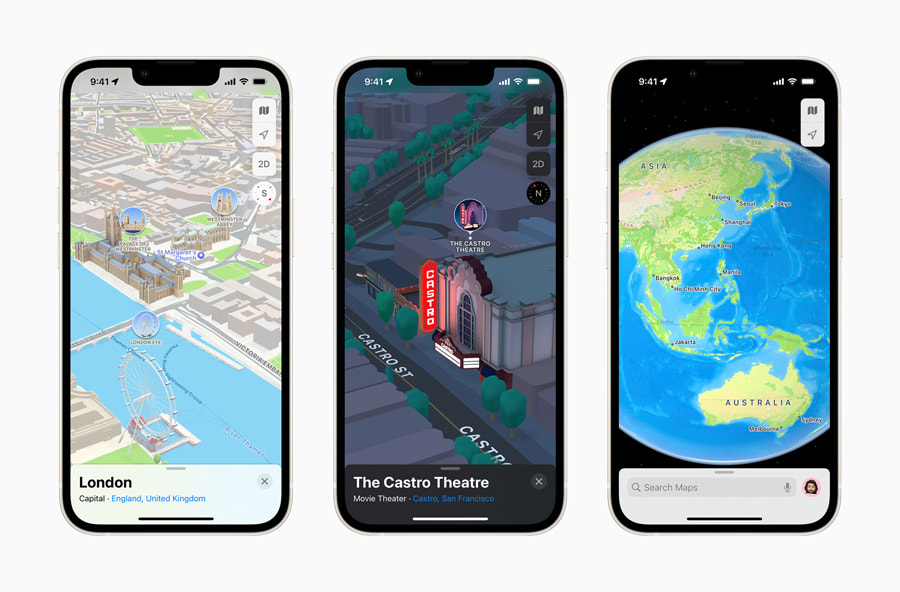
Apple Maps show more default locations with smaller texts and icons. Like Apple Maps, Google Maps shows many default locations but is not the same as those of Apple Maps as the text and icons are larger and eye-catching. If you have vision problems, you can experience challenges deciphering Apple Maps locations.
To search for a specific location with Apple Maps, use the search bar at the bottom of the screen. You’ll get a pop-up menu at the upper right that allows you to switch between Transit, Map, Satellite views, etc. In addition, Apple Maps come with custom icons to help with navigation.
Google Maps
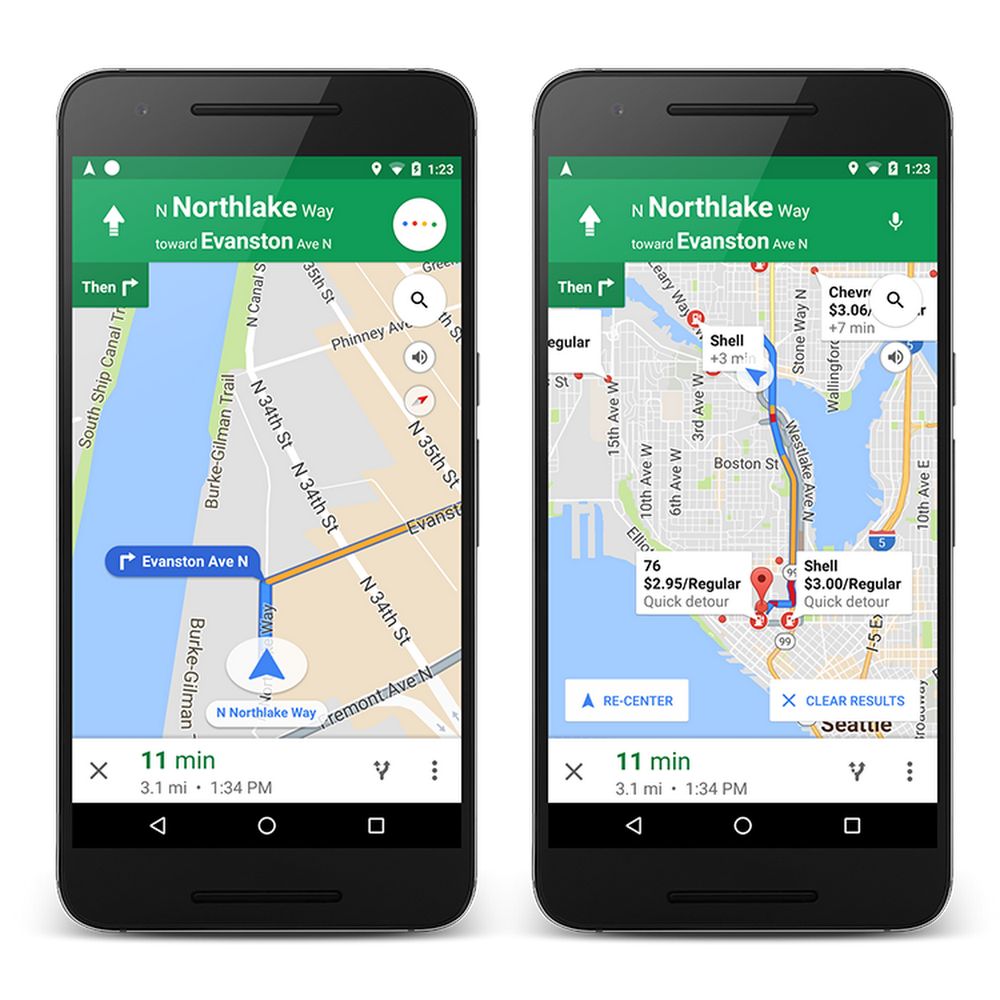
Google, too, has a search box and offers three view models: Default, Terrain, and Satellite.
Google Maps has tabs for Explore, Commute, Saved, Contribute, and Update. The Saved tab lists saved locations, while Commute shows the best route from one location to another.
Pull the tab at the bottom under My Places to access saved locations, frequently visited places, and recent searches on the Apple Map. It also offers the 3D option when viewing the map in satellite mode.
Map Design
Another to consider when comparing Google Maps vs. Apple Maps is the Map design. Apple Maps have opted for a minimalist map design, meaning you have to zoom in to view much of the information.
Of course, you’ll see more information when you zoom in Google Maps, but they show more information than Apple Maps when not zoomed in. However, both Maps show the essentials regardless of how you view the map. Still, the Apple Maps’ approach of showing less can provide a better user experience than Google Maps’ excess information.
Privacy
Privacy is an issue for most online users, including when using navigational tools like Apple Maps and Google Maps.
Apple and Google have different philosophies that govern data and privacy, so this is something to consider when deciding what to use for your local SEO.
Apple has a reputation for maintaining data privacy. One way they achieve this is by keeping users’ data, navigation, and directions on your device instead of the cloud. Even better, the mapping information a user finds doesn’t show their Apple ID. Ideally, Apple doesn’t keep a history of what users search or the locations they visit.
Google also has a data privacy policy and various control options like Incognito mode that keeps user’s searches and locations private.
Navigation
How users navigate maps will determine the ease of finding what they’re looking for. Both Apple Maps and Google Maps follow a user’s progress, including journey distance, travel time, and current estimated travel time (ETA).
Both services alert users on what to expect on their route and suggest alternative routes if there’s much traffic on the current route or road closures. This is the case whether the user is cycling, driving, walking, or driving.
Google Maps allows for the option to add multiple stops to your route. While Apple allows for this option, it won’t allow you to change the route to pick something without starting a new route. Google has also updated its service to suggest routes that use less fuel and have fewer chances of accidents without impacting the ETA significantly.
Apple Maps Vs. Google Maps – Discovery
Both map apps help people discover nearby restaurants, schools and other businesses, as well as giving directions.
Google clearly shows this and provides a list you can scroll down to the end. The service contains buttons that help you choose anything you want and the Explore tab that gives a general overview of the area. In fact, improvements to this feature give users more specific recommendations of what they are searching for. For instance, if you are looking for a baby hoodie shop, you will be shown shops that deal with baby hoodies instead of a general baby cloth shop.
Apple Maps’ ‘Find Nearby’ feature works similarly to show users results relevant to what they are looking for. However, it doesn’t provide a full list as Google does. It offers a few options that change depending on the location. It also has a feature called ‘Guides’ that provides relevant editorial content to help users familiarize themselves with a particular location.
The Explore feature from Google Maps uses Google information to provide more information about businesses, including operating hours, contact information, etc.
Apple Maps also has its own ratings: Apple Account users rate places with a thumbs up or thumbs down for each category, and can add photos. It shows content from partners such as Yelp and Tripadvisor as well. Additionally, Apple Maps has a ‘Curated Guides’ option (part of the iOS 15) that provides recommendations on where to go when in a specific city.
Street View
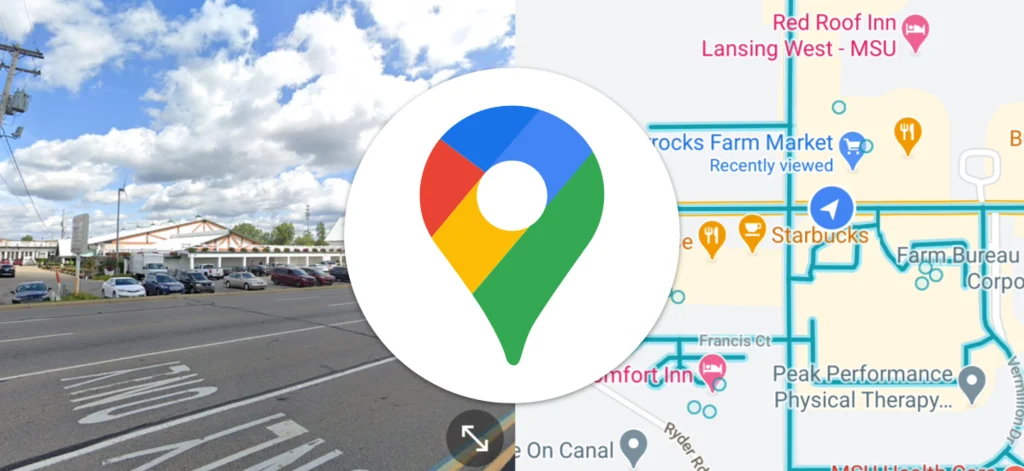
Users can also use the Street View feature to find their way when in an unknown location. This Google feature was launched in 2007 and has since expanded to different parts of the world. More specifically, this feature allows users to view a location from their point of view rather than the standard perspective.
To access it, users need to change the map type to the Street View option and choose the area highlighted in blue.
On the other hand, Apple Maps has ‘Look Around,’ an equivalent to Street View feature from Google Maps. This feature was launched in 2019 and is available in select countries.
To use this feature, select a location on the map and choose the ‘Look Around’ option. However, navigation isn’t available in full-screen mode: it can only be accessed in the split-screen mode.
The AR directions came with iOS 15, allowing Apple users to scan nearby buildings by raising their iPhones to determine their location.
Hands-Free Control
Tapping a phone while driving is dangerous. Both Google Maps and Apple Maps have hands-free control, although they work differently.
To start with, Apple Maps is connected to Siri, meaning you can set it quickly. Siri, too, works with Google Maps, which means a few extra steps to set it up; otherwise, you’ll be directed to Apple Maps. That means you must specify that you want to use Google Maps when talking to Siri. Another option is to download and set up Google Assistant.
On the other hand, Android devices come with Google Maps and Google Assistant, meaning there are no unnecessary steps to set it up.
How to Optimize Your Business for Apple Maps
To optimize for Apple Maps, claim your location in Apple Business, verify it, then fill in every place card field with the same details you use on Google. Add approved photos, a showcase and action buttons, and check your insights each month.
- Sign in to Apple Business. Go to business.apple.com and sign in or create an account for your organization. If you used Apple Business Connect before April 2026, your locations and data were moved over automatically.
- Verify your organization. Your first location triggers an organization verification that Apple reviews. Photos and some other features stay locked until it’s approved.
- Claim each location. Go to Brands, then Locations, and search for your business. If Apple shows “This location is already managed”, another organization already manages it. Verify each location, for example by phone call with a four-digit code.
- Match your Google details exactly. Use the same business name, address, phone number with country code, website and hours as your Google Business Profile and directory listings. Add special and temporary hours for holidays.
- Pick categories carefully. Choose the most accurate primary category, then add relevant secondary ones (Apple allows up to 19). Apple adds categories over time, so check back for a closer match.
- Write the About text and Good to Know attributes. Describe your services and service area in plain language. Turn on attributes that apply, such as contactless payments or accessibility features.
- Upload a logo, cover photo and gallery photos. Apple reviews each image against its photo standards before it appears, so follow the Apple Business image style guide to avoid rejections.
- Add action buttons and a showcase. Link actions like Book, Order or Reserve to your own website or app, and use a showcase for a current offer, new product or seasonal item.
- Ask happy customers to rate you in Apple Maps. Ratings come from Apple Account users, and Maps may prompt people who recently visited a place to rate it. Keep your Yelp and Tripadvisor profiles current too, since Apple Maps shows partner content.
- Review insights monthly. Check search taps, place card views and which actions people tap. Low numbers show as zero because Apple hides metrics below a privacy threshold, so don’t read a zero as a broken listing.
Do the same on Google with our Google Business Profile optimization guide, and keep your details consistent across directories with our guide to local SEO citations. To choose which services and cities to write into your place card and profile, see local keyword research.
How Siri, Spotlight and Apple Intelligence Use Apple Maps Data
Your Apple place card is not limited to the Maps app. Apple says the place card “appears in many Apple apps, from Maps to Siri”, along with Calendar, Messages and Spotlight searches, and Apple’s launch announcement for Apple Business adds Safari to that list.
In practice, that means one listing answers several kinds of questions on an iPhone:
- Siri: When someone asks Siri for a nearby business or directions, Siri draws on Apple Maps place information.
- Spotlight and Safari: Searching a business name from the iPhone home screen or in Safari can show your place card with hours, phone number and directions, without opening a search engine.
- Calendar and Messages: Addresses and places in events and messages link to place cards.
- Apple Wallet and Mail: Apple Business also manages brand details shown in Wallet and in branded email, so your logo and name appear consistently across these apps.
- Visual Intelligence: On iPhones with Apple Intelligence, pointing the camera at a storefront lets people view hours, menus or services and place orders. Apple doesn’t say which data source powers these business details, but keeping your place card accurate is the part you control.
This is why Apple Maps matters even if few of your customers open the Maps app on purpose. Wrong hours or an old phone number on your place card can show up in Siri answers and Spotlight results with no website visit involved. For more on how assistants turn “near me” questions into local results, see our guide to near me searches in local SEO.
Google Maps Vs. Apple Maps for Local SEO—Takeaway
Google Maps and Apple Maps each win in different areas, so local businesses should keep both listings current. Google has led for a long time, but Apple Maps is the default map on every iPhone, iPad and Mac, and its place cards also appear in Siri and Spotlight. With such information, businesses should consider creating Apple Maps listings to increase exposure and expand the target audience margins. Of course, you still need a strong Google Business Profile, because Google Maps is the default on Android and your profile also appears in Google Search.
If you need help on how to claim and optimize your Apple Maps and Google Maps listing, we can help. Please get in touch with us below, and local SEO experts will help you claim your Apple Maps place card in Apple Business or optimize your Google Business Profile.
We manage both Apple Maps and Google Business Profiles as part of our local SEO services in Los Angeles.
Frequently Asked Questions
What is Apple Maps SEO?
Apple Maps SEO is the work of making your business easy to find in Apple Maps, Siri and Spotlight. It means claiming and verifying your place card in Apple Business, keeping your name, address, phone, hours and categories accurate and consistent with your other listings, adding approved photos, showcases and action buttons, and earning Apple Maps ratings from customers.
Is Apple Maps the same as Google Maps?
No. Apple Maps and Google Maps are separate services built by different companies with their own map data, reviews and business listings. Apple Maps is the default on iPhone, iPad and Mac. Google Maps is the default on Android and runs on iPhone too. A business needs to claim its listing on each one separately.
What happened to Apple Business Connect?
Apple replaced Apple Business Connect with Apple Business on April 14, 2026. Apple Business combines the old Business Connect place card tools with device management, business email and Apple Maps ads. Existing Business Connect data moved over automatically, and businessconnect.apple.com now redirects to business.apple.com.
Does Apple Maps use Google reviews?
No. Apple Maps doesn’t show Google reviews. It shows its own ratings, where Apple Account users give a thumbs up or thumbs down by category, alongside content from partners such as Yelp and Tripadvisor. Keep your Yelp and Tripadvisor profiles current, since that content can appear on your Apple place card.
Is it free to list a business on Apple Maps?
Yes. Claiming and managing your place card in Apple Business is free. Ads in Apple Maps are a separate, paid option available in the US and Canada to businesses that have claimed their locations.
Do I need Apple Maps if I already have a Google Business Profile?
Yes, if you serve local customers. Your Google profile doesn’t update Apple Maps, and Apple’s place card is what iPhone users see in Maps, Siri and Spotlight. Claiming it lets you correct hours, phone numbers and categories that Apple might otherwise pull from other sources.
Suggested
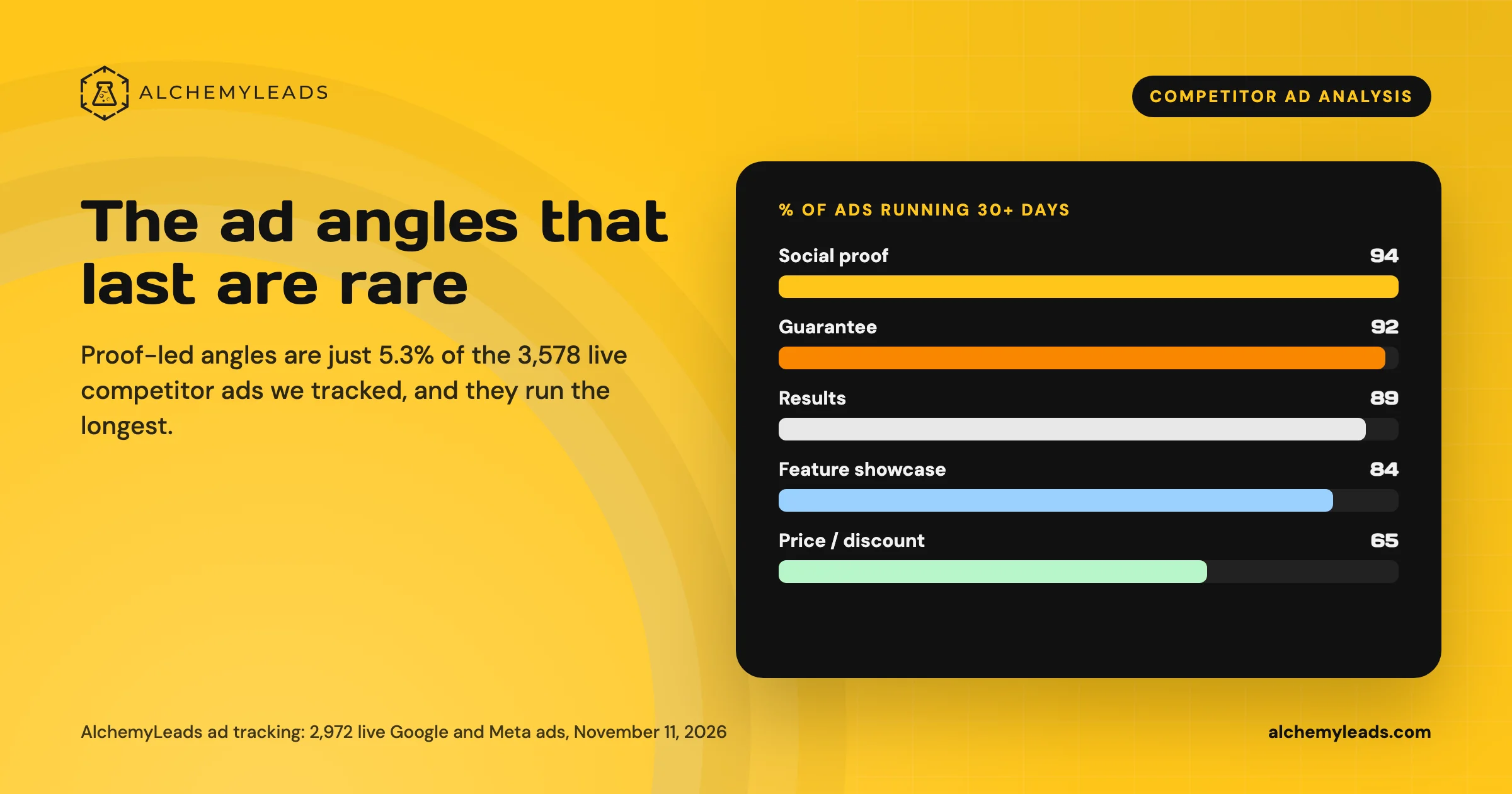
Competitor Ad Analysis: What 3,578 Live Ads Say About the Creative That Lasts
We tracked 3,578 live competitor ads on Google, Meta and LinkedIn. Proof-led angles are the rarest and run the longest. See the data and the playbook.
November 11, 2026
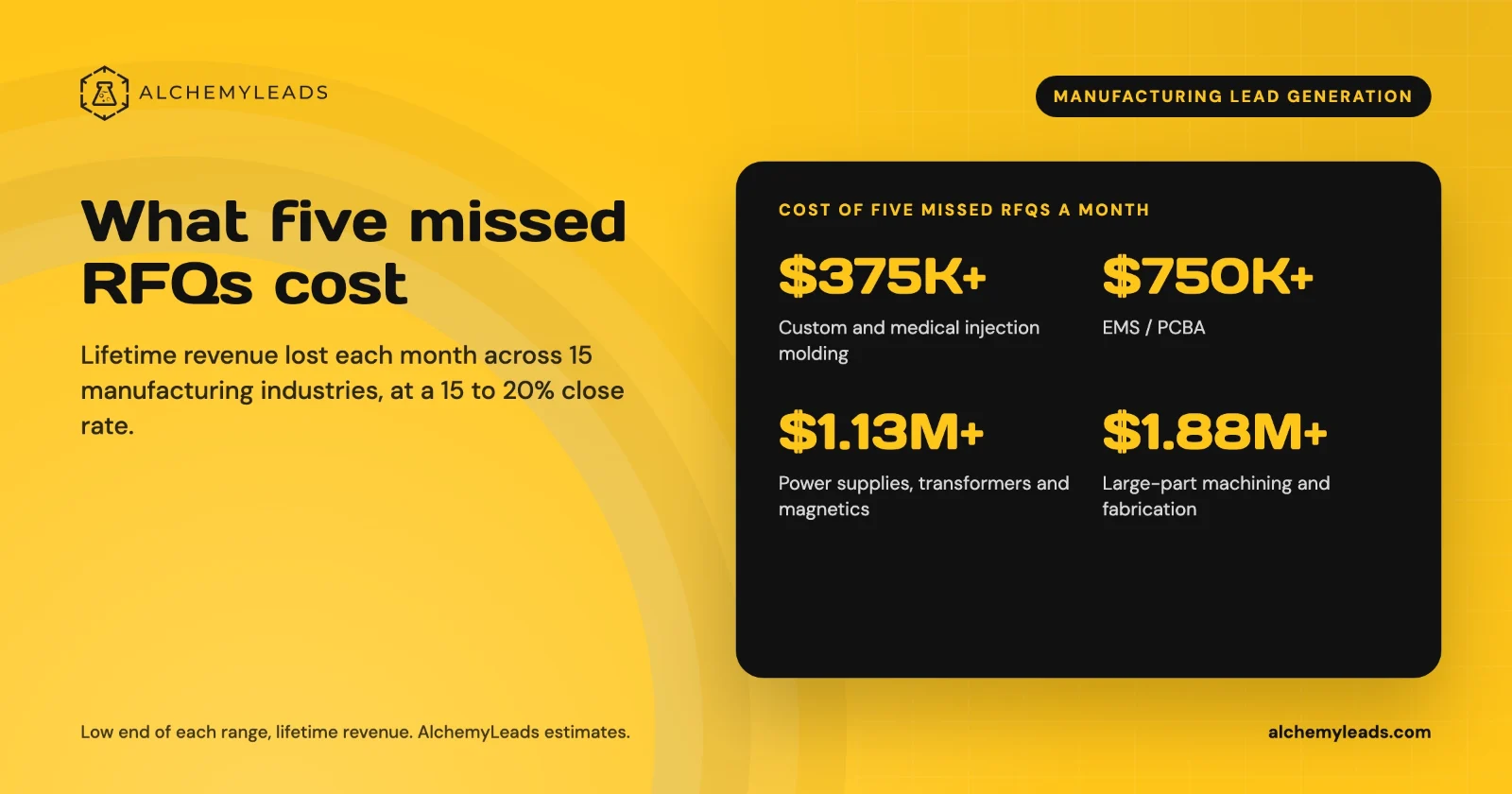
The Cost of Inaction in Manufacturing Lead Generation: What Five Missed RFQs a Month Cost in 15 Industries
What five missed RFQs a month cost across 15 manufacturing industries, with a cost of inaction calculator.
October 27, 2026
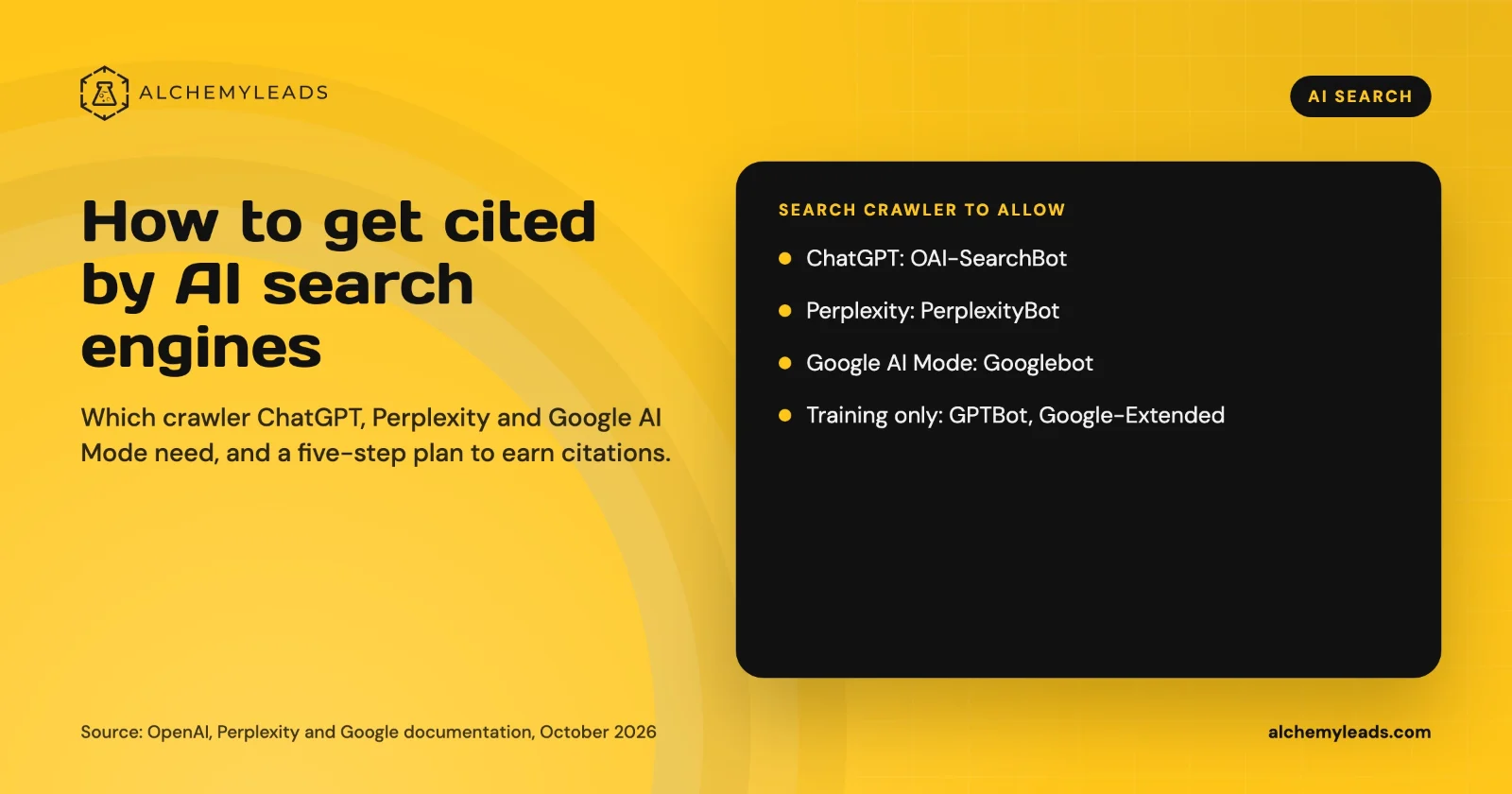
How to Get Cited by ChatGPT, Perplexity and Google AI Mode
How ChatGPT, Perplexity and Google AI Mode choose sources, which crawlers to allow, and a five-step plan to get your company cited, based on official docs.
October 26, 2026
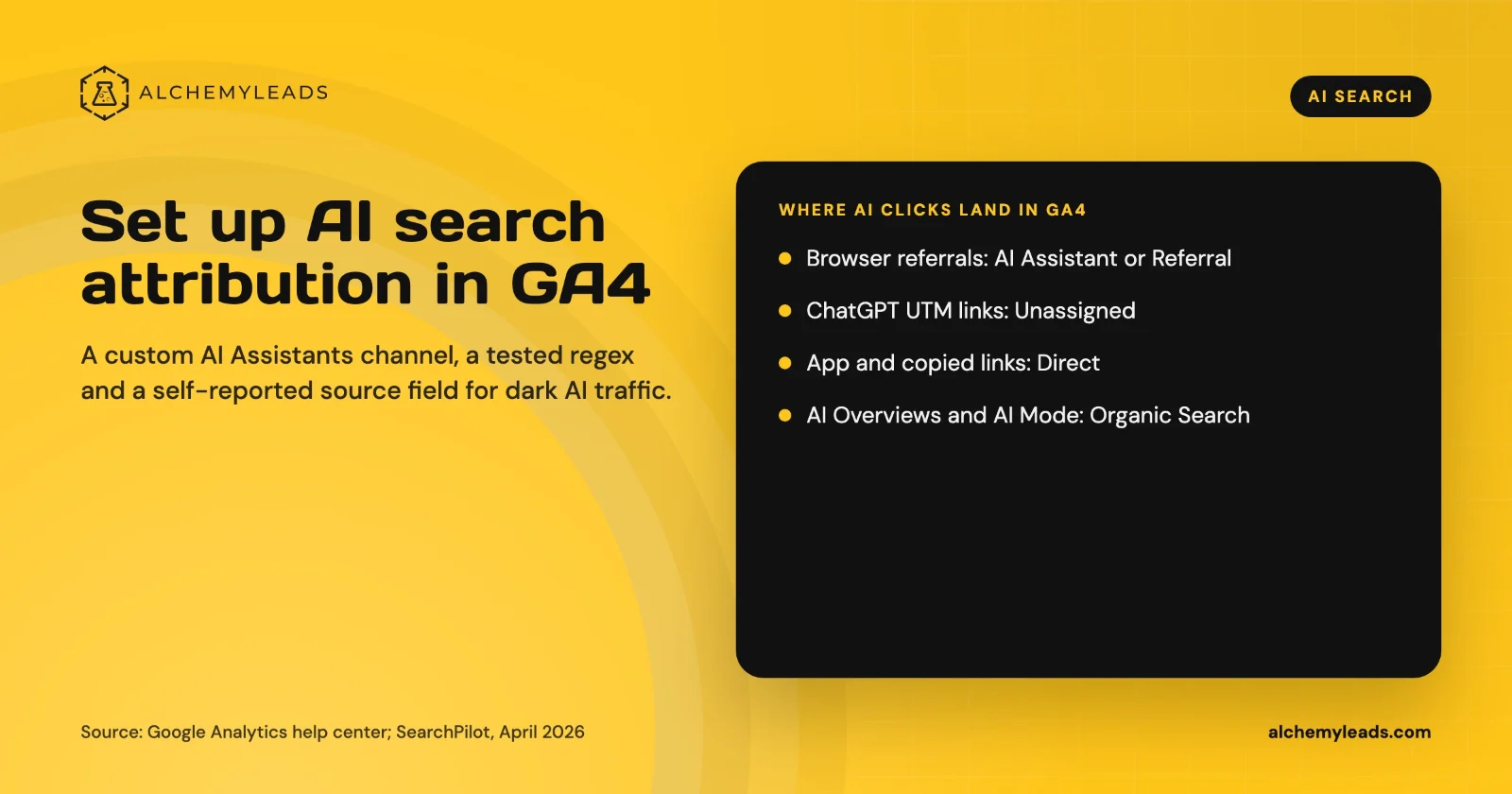
How to Set Up AI Search Attribution in GA4: A Step-by-Step Guide for 2026
Step-by-step GA4 setup for AI search attribution: an AI Assistants channel, a copy-paste regex, ChatGPT UTM fixes and a self-reported AI source field.
October 26, 2026
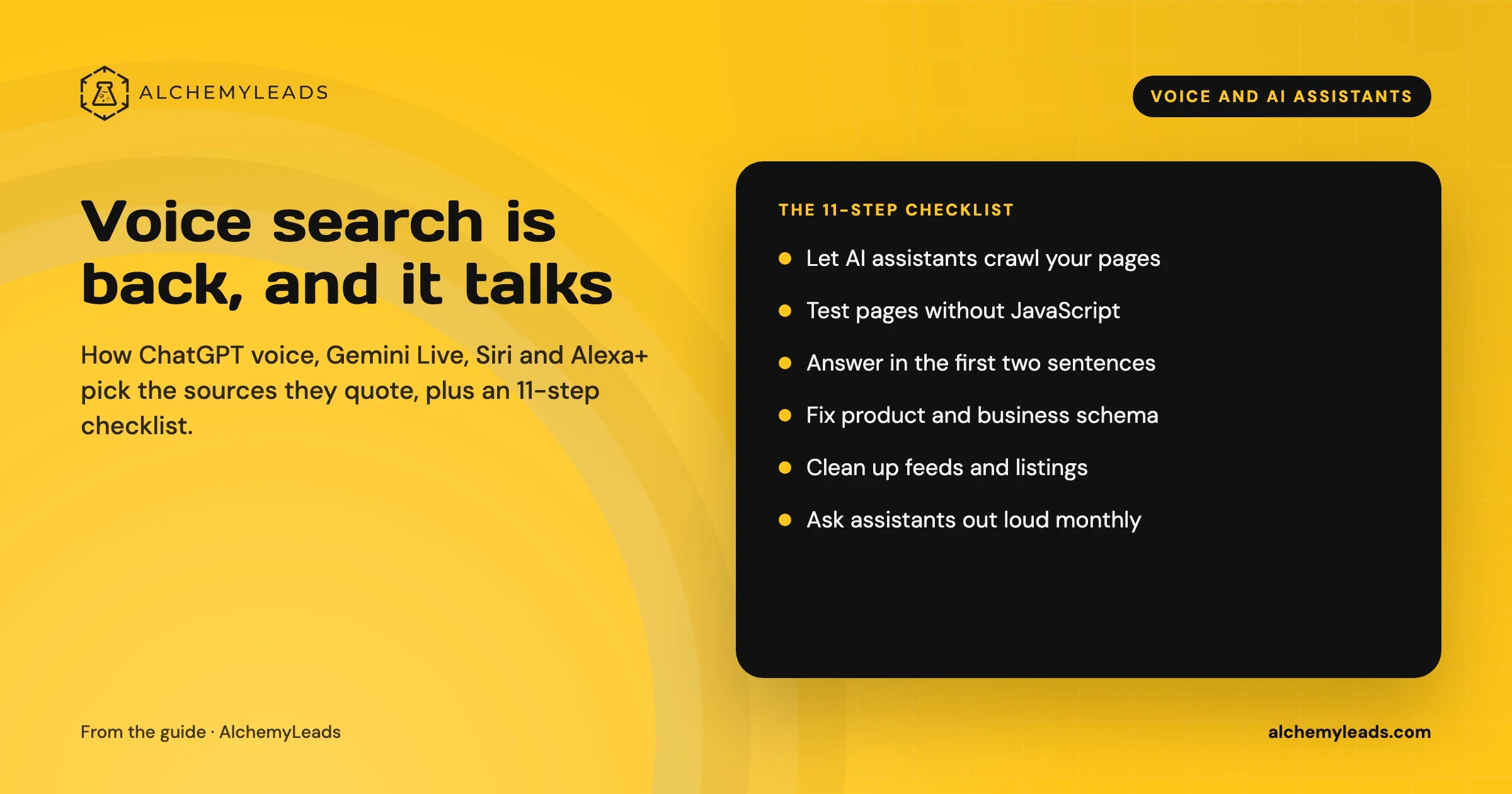
Voice Search in 2026: How AI Assistants Pick Their Sources
We first wrote about voice search in 2022, when the question was whether “Hey Siri” and “OK Google” would change how people shop. Four years later, voice is back in a bigger form. People now talk to ChatGPT, Gemini, Siri, Alexa+ and Copilot the way they talk to a knowledgeable friend, and those assistants answer by reading the web in
October 17, 2026
Contact us
We value your privacy and won't share your email with others.
We'll only contact you with curated content.
